
iMac Internet Connection Restored
- Symptom
- An iMac running macOS Ventura could not turn on its built-in Wi-Fi, leaving it with no way to reach the internet.
- Diagnosis
- The fault was in the wireless hardware. networksetup showed the device still enumerated on en1, but the live system log recorded the driver's radio power-on command returning -1 on every attempt. Repeated from Internet Recovery, the power-on command returned no error and -getairportpower still reported the radio off, which ruled out the installed system and its settings.
- Fix
- Reaching the wireless hardware in an iMac means taking a bonded display off, which is several hours of labor for a small part. Both options were priced and discussed first. The customer chose the external route: a TP-Link AC1750 range extender joined to the existing wireless network and bridged to the iMac's Ethernet port.
The Wi-Fi on this iMac would not turn on, and the machine had no other way onto the network. The job came down to two questions. First, whether the cause was in software or in the wireless hardware. Second, once that was settled, what to do about it. This page covers both, including the commands used and what each one returned.
What This Page Is For
A computer that won't get on Wi-Fi can have a lot of different causes. A router or internet service fault, a network configuration that needs rebuilding, a driver or system problem, distance and interference, and a failure in the wireless hardware itself all show up as the same complaint. They have little in common past that, so the first question isn't how to fix the Wi-Fi. It's how far the machine gets before it stops.
This write-up records the commands we ran, what came back, and how the result was checked in a second operating system before any conclusion was drawn. It also records the repair we didn't do, and why.
The Long Version
Diagnosing a Radio That Wouldn't Power On
What follows is the job in order: where the connection stopped, what the command line and the system log showed, how the same test was repeated in Recovery, and what we did once the answer was clear. Skip to the result if you'd rather not read the whole thing.
Where the Connection Stopped
This machine wasn't failing to find a network, and it wasn't joining one and dropping off. It was stopping earlier than either of those, at the point where the wireless radio gets powered up.
That matters because nothing else can happen until that step finishes. Scanning for networks, authenticating, and getting an address all come after it. A fault there sits between macOS and the hardware with nothing else in between, which is a much smaller place to look than "Wi-Fi doesn't work."
Checking What the System Could See
The first thing to establish is whether macOS still knows the wireless hardware is there. Two commands cover it:
networksetup -listallnetworkservices
networksetup -listallhardwareports
The first lists the network services the system has configured, which is the same list that appears down the side of the Network settings pane. The second lists the physical ports behind those services and the device name macOS has assigned to each one.
Wi-Fi appeared in both, on device en1, which is the same interface name that shows up in the log entries further down this page. So the hardware was still being detected and still had a device assigned to it. Whatever was wrong, it wasn't a card that had gone completely missing from the system. (The hardware ports listing also prints a hardware address for each port. Those aren't reproduced here.)
Turning It On From the Command Line
The Wi-Fi switch in System Settings reports very little when it doesn't work. The command line gives the same instruction and is more specific about what it's doing:
sudo networksetup -setnetworkserviceenabled "Wi-Fi" on
That enables the Wi-Fi service in the network configuration, which is a separate thing from powering up the radio. A service can be switched off in the configuration while the hardware is perfectly fine, so it's worth ruling out first. The command ran without error. The radio still didn't come on.
Watching the Log While It Failed
Rather than go looking through the log afterward, we watched it live while making the attempt, filtered down to the processes that handle wireless:
sudo /usr/bin/log stream --style compact --level info \
  --predicate 'process == "airportd" OR process == "wifid" OR subsystem CONTAINS[c] "wifi"'
airportd and wifid are the two background processes that manage wireless on a Mac, and the last clause catches anything else logging under a Wi-Fi subsystem. With that running, every attempt to switch Wi-Fi on produced the same pair of entries. The first comes from the low-level driver:
Apple80211IOCTLSetWrapper:5108 @[80454.696141] ifname['en1']
IOCTL type 19/'APPLE80211_IOC_POWER', len[24] return -1/0xffffffff
An ioctl is a control command handed straight to a device driver. This one is APPLE80211_IOC_POWER, which is the command that turns the radio on, aimed at en1. return -1 is that command failing, with 0xffffffff being the same value written in hex. There's no application, preference file or saved network anywhere in that line.
The second entry is the same moment from one level up, logged by the service that asked for it:
Info: <airport[239]> -[CWXPCSubsystem setWiFiPowerState:interfaceName:
authorization:euid:isUserPowerOff:error:]: Failed to set Wi-Fi power,
return error code 1
The bracketed name is the function inside that service that was asked to change the power state, and it reports the request came back unsuccessful. Taken together, the two lines say the command to the hardware failed and the service that issued it recorded the failure rather than reporting Wi-Fi as on.
Repeating the Test in Recovery
Everything to this point ran on the installed system. A damaged network configuration, a system file problem or a leftover configuration profile can all produce behavior that looks like broken hardware, and all of them are cheaper to fix than a card. The way to tell them apart is to run the same test from an operating system that shares nothing with the installed one.
Holding Option + Command + R at startup boots Internet Recovery, which pulls its recovery system from Apple instead of using the copy on the local disk. That needs a network connection, and this machine didn't have one. We ran a 30-foot Ethernet cable from the router to the iMac to get it online long enough to boot. That also happened to confirm the Ethernet port worked, which mattered later.
Once Recovery was up, Terminal opens from the Utilities menu in the menu bar. networksetup isn't on the PATH in the Recovery environment on this machine, so the commands were run against the copy on the startup volume, which Recovery mounts under /Volumes. "Macintosh HD" is the volume name here; anyone following along with a renamed startup disk substitutes their own.
"/Volumes/Macintosh HD/usr/sbin/networksetup" -listallhardwareports
"/Volumes/Macintosh HD/usr/sbin/networksetup" -setairportpower en1 on
"/Volumes/Macintosh HD/usr/sbin/networksetup" -getairportpower en1
The binary comes off the mounted volume, but it acts on the Recovery session that's running, not on the installed system's saved settings. The hardware ports listed the same way they had before. The power-on command was accepted without complaint. The status query that followed still reported the radio off.
That's what the diagnosis rests on. In an operating system carrying none of the installed system's settings, saved networks or profiles, with the device still enumerated and the power-on command returning no error of its own, the radio would not come up. At that point the question stops being how to fix the wireless and becomes what fixing it is worth.
Weighing the Internal Repair
An iMac keeps everything behind the screen, and the screen is bonded to the chassis with adhesive. Reaching the wireless hardware means cutting that bond, lifting the display clear and setting it somewhere it won't be damaged, doing the work, then re-bonding the display on the way back out. The access is several hours of careful work. The wireless part itself is small and inexpensive by comparison.
Set against that, what the machine actually needed was an internet connection. The radio inside it is one way to get that, and it isn't the only way, provided something else can carry the connection the last few feet.
We priced both options and went through them with the customer before doing anything else, and they chose the external route. See what diagnosis and repair cost for how that gets quoted.
Using the Ethernet Port Instead
The iMac's Ethernet port doesn't depend on the wireless hardware in any way, and Recovery had already proved it worked. The only thing missing was a way to get the house network to it without leaving a 30-foot cable running across the room.
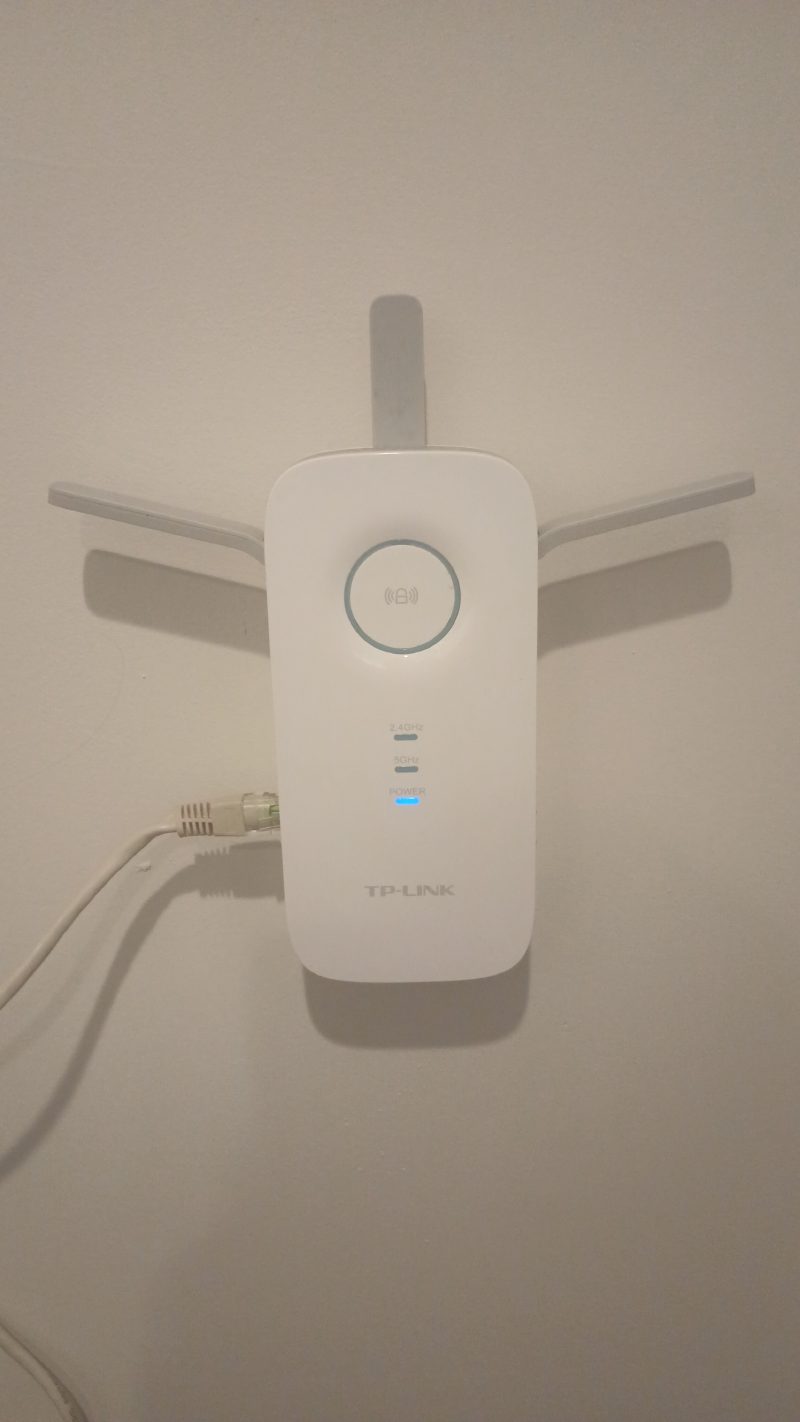
A TP-Link AC1750 range extender does that. These are sold to widen wireless coverage, but this model also has an Ethernet port, and in that role it works as a bridge: it joins a wireless network on one side and hands that connection to a wired device on the other. We configured it onto the existing network, put it on the outlet beside the iMac, and ran a short Ethernet cable between the two. The long cable came back up.
From the Mac's side nothing unusual is going on. It's a desktop computer plugged into a network with a cable. No drivers were installed and nothing inside the machine was changed.
A USB Wi-Fi adapter was the other candidate and we passed on it. Third-party USB adapters on current macOS depend on manufacturer drivers that are often out of date, sometimes unavailable, and can stop working at the next system update. For a machine whose whole problem is staying online, that's the wrong thing to build on.
The Result
The iMac is online and back in normal use. Anything that travels over the internet works the way it did before: mail, browsing, system updates, cloud storage, streaming.
The customer kept the computer, skipped the teardown, and paid for a diagnosis and a short setup rather than a display-off repair. The machine isn't in a compromised state. It's a desktop on a wired network connection.
What the Arrangement Depends On
The built-in Wi-Fi is still out, and the connection now runs through the extender. That means the extender has to stay plugged in and the short Ethernet cable between it and the iMac has to stay connected. For a desktop that sits in one place, those are stable things to depend on. If the internal repair is ever wanted later, nothing done here gets in the way of it.
What This Job Shows About How We Work
Find out where it stops before asking how to fix it.
"Won't connect" covers a lot of unrelated faults. This one stopped at powering the radio on, which rules out everything that happens after that point and makes the rest of the work much shorter.
The machine keeps its own records.
Streaming the log while making the attempt showed both the driver's failure and the service's report of it. Reading what the computer already wrote down beats guessing, and it produces something a customer can be shown.
Software gets ruled out before hardware gets blamed.
Repeating the test in Recovery is what separates a broken installation from broken hardware. They cost very different amounts to fix, so the extra step is worth the time it takes.
A settled diagnosis is what makes a real choice possible.
"We're not sure what's wrong" isn't something anyone can decide on. Knowing the hardware had failed is what turned this into two defined options with two different prices, both of them priced before any work started.
The most thorough repair isn't always the right one.
Some jobs end with a new part inside the device. This one ended with a small piece of networking equipment next to it, because that's what got the computer working again at a cost that made sense for the machine.
Technical Details
| Device | Apple iMac all-in-one desktop running macOS Ventura |
| Reported symptom | Built-in Wi-Fi would not turn on; no other network connection |
| Point of failure | Radio power-on, before any scan, authentication or address request |
| Device enumeration | networksetup -listallnetworkservices and -listallhardwareports both listed Wi-Fi, on en1. The hardware was still detected |
| Service enable | sudo networksetup -setnetworkserviceenabled "Wi-Fi" on ran without error. Radio stayed off |
| Log capture | sudo /usr/bin/log stream --style compact --level info --predicate 'process == "airportd" OR process == "wifid" OR subsystem CONTAINS[c] "wifi"', streamed live during each attempt |
| Driver log entry | Apple80211IOCTLSetWrapper:5108 — ifname['en1'], IOCTL type 19/'APPLE80211_IOC_POWER', return -1/0xffffffff |
| Service log entry | airport / CWXPCSubsystem setWiFiPowerState: — "Failed to set Wi-Fi power, return error code 1" |
| Clean-environment test | Internet Recovery via Option + Command + R, reached over a temporary 30-foot Ethernet run because Internet Recovery downloads its system and the machine had no other connection |
| Recovery commands | networksetup is not on the PATH in Recovery on this machine, so it was called by full path on the mounted startup volume: -listallhardwareports, -setairportpower en1 on, -getairportpower en1 |
| Recovery result | Hardware ports listed as before; the power-on command returned no error; -getairportpower en1 still reported the radio off |
| Conclusion | Wireless hardware failure. Established from the machine's behavior, its logs, and the Recovery test. The card was not removed or probed, so no component-level measurement is claimed |
| Repair not performed | Internal wireless replacement. Access requires cutting the display's adhesive bond, removing the display and re-bonding it afterward — several hours of labor for a small part. Priced and discussed before any work; the customer chose the external route |
| Alternative passed over | USB Wi-Fi adapter. Third-party adapters on current macOS depend on manufacturer drivers that are often out of date or unavailable and can break at a system update |
| Solution | TP-Link AC1750 range extender joined to the existing wireless network, bridging to the iMac's built-in Ethernet port over a short cable. No drivers installed, no internal modification |
| Verification | iMac online through the wired connection and returned to normal use |
| Not recorded | The specific iMac model and the part number of its wireless hardware. Neither was written down at the time, so neither is stated anywhere on this page |
| Status | Complete. Customer online and working |
Computer or Wi-Fi Trouble?
If a computer won't connect, keeps dropping off the network, or you're not sure whether it's worth repairing, we can work through the options with you. Tell us the make, model and what it's doing and we'll tell you whether a repair looks worth pursuing before you book anything. We cover computer and laptop repair and in-person tech help across Leavenworth and the Upper Wenatchee Valley area.
Not sure it's worth fixing? Tell us the make, model, and what it's doing, or call (509) 708-2953 — no charge to ask, and nothing to book. Send us the details →
That conversation can usually tell you whether a repair is worth pursuing and which diagnostic fits. A firm repair price takes having the device in hand.